Spooky CTF 2024 - Forensics
Forensiscs Challenge Write-up
WORK IN PROGRESS…
lsass-crackdown
easy-395 points-77 solves
Anna Circoh has intercepted a highly sensitive memory dump, but The Consortium has fortified it with advanced encryption, hiding their deepest secrets within. Participants must analyze the data and navigate through layers of defenses to find a key piece of information we are thinking its a leaked password. Dr. Tom Lei has rigged the memory with decoys and traps, so tread carefully—one wrong step could lead you down a path of misdirection.
Some AV’s may detect the attachment as malicious. This is a false positive and can be ignored
Solution
Due to my past experience and the naming convention of that challenge I knew this dump file probably contains the lsass process, where credentials are often found, so I went straight for mimikatz. Here’s a breakdown of the process:
Load Up in WinDbg: First, I opened the dump file in
WinDbg(Windows Debugger), which is a tool great for examining memory dumps. Then, I loaded up themimikatzDLL within WinDbg itself to run commands through it.1
.load mimilib.dll
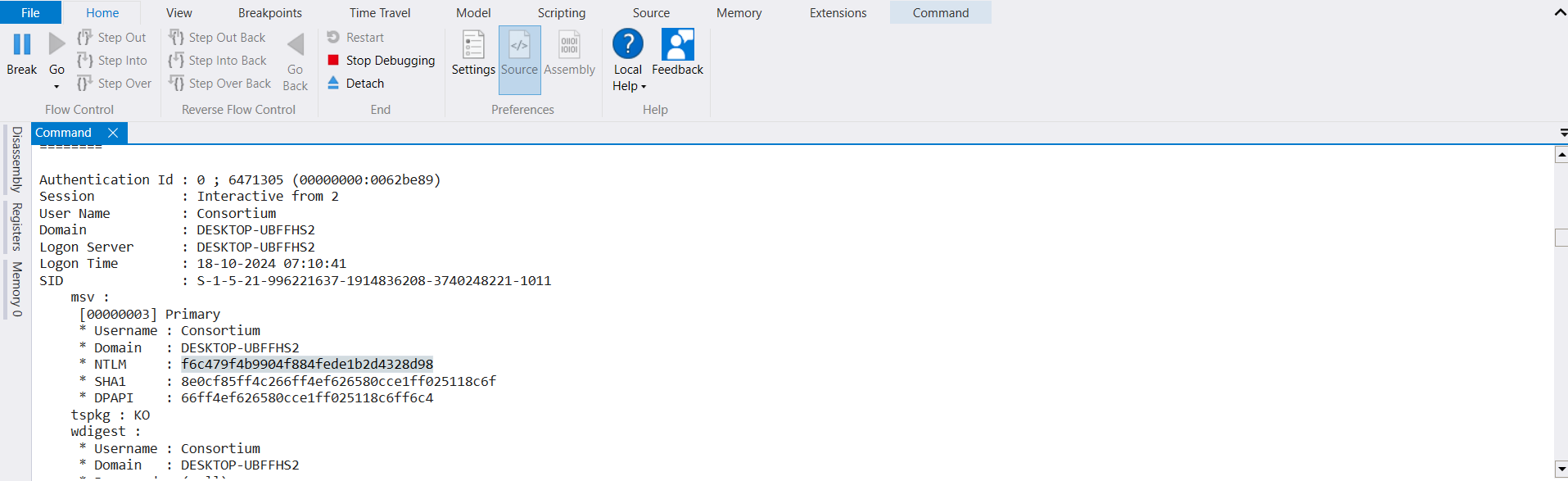
Success! Mimikatz retrieved an NTLM hash for me:
f6c479f4b9904f884fede1b2d4328d98.Crack the Hash with Hashcat: With the NTLM hash in hand, it was time to crack it. I used
hashcatand therockyou.txtwordlist to tackle it:1
hashcat -m 1000 f6c479f4b9904f884fede1b2d4328d98 rockyou.txt
And there it was—the password! This password turned out to be our flag.
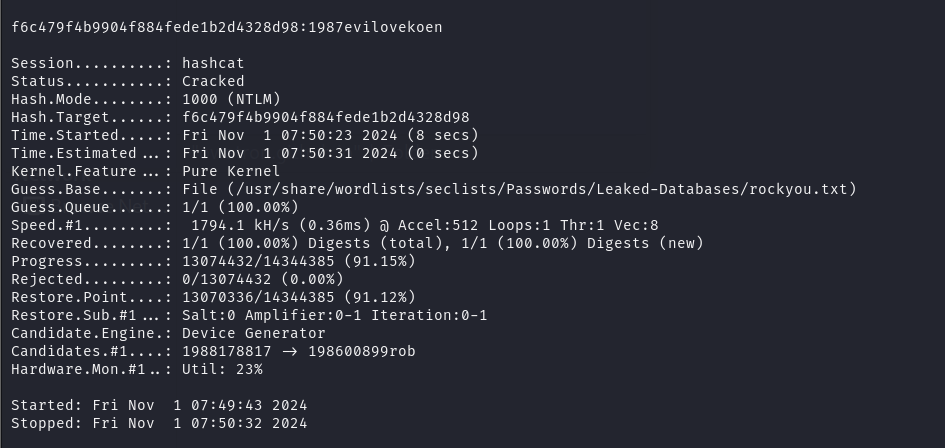
Flag:
NICC{1987evilovekoen}
event-code-hunt
medium-495 points-124 solves
Maya Elmer managed to seize one of The Consortium’s computers, but when she tried to access a critical file, a sudden blue box flashed across her screen, and the file was instantly encrypted. Now, with the clock ticking, participants must step in to decrypt the file and uncover the hidden contents. The Consortium’s encryption is tough to crack, and only the most determined will succeed in revealing the secrets locked away within.
Solution
We are provided with evtx (Event Log files) to analyze so here are the steps to analyze the evtx files
Step 1: Analyzing the evtx Logs
First off, we’re provided with .evtx log files, which are Windows Event Logs. These files can contain a treasure trove of system activity, and we need to analyze them to uncover any suspicious actions or clues about the encrypted file.
Using Chainsaw to Hunt for Clues To dig through the logs efficiently, we used a tool called Chainsaw. Chainsaw is excellent for finding suspicious activities in Windows Event Logs, especially when paired with predefined rules from Sigma (a rule-based language for logs).
We ran the following command:
1
./chainsaw hunt -r rules/ .\event-code\ -s sigma/rules --mapping mappings/sigma-event-logs-all.yml
-r rules/: Specifies the rules directory for Chainsaw.-s sigma/rules: Applies Sigma rules to detect suspicious patterns in the logs.--mapping mappings/sigma-event-logs-all.yml: Maps event log fields to make detection easier.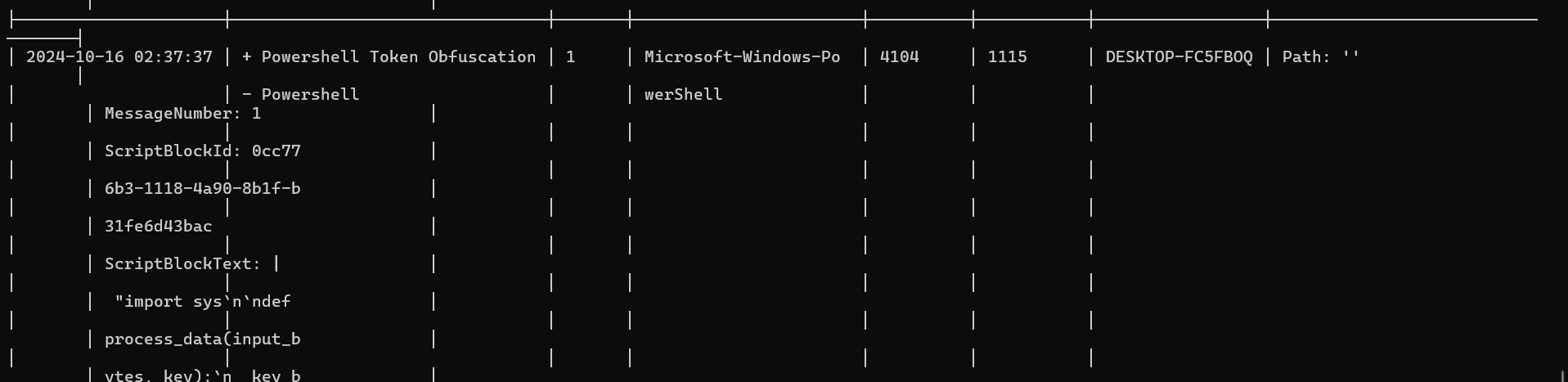
This command flagged a suspicious entry where PowerShell was executed with obfuscated commands. Bingo! This is likely where the file encryption went down.
For more information on how Chainsaw can improve threat analysis, check out this Chainsaw reference.
Step 2: Inspecting the Suspicious PowerShell Command
After identifying the event, we dug into the details, particularly the ScriptBlockText field, which holds the PowerShell script. Here’s the core of what we saw:

1
2
ScriptBlockText: |
    "import sys`n`ndef process_data(input_bytes, key):`n    key_bytes = key.encode('utf-8')`n    return bytearray([b ^ key_bytes[i % len(key_bytes)] for i, b in enumerate(input_bytes)])`n`ndef main():`n    if len(sys.argv) != 4:`n        print('Usage: python script.py <input_file> <output_file> <key>')`n        return`n    input_file = sys.argv[1]`n    output_file = sys.argv[2]`n    key = sys.argv[3]`n`n    with open(input_file, 'rb') as f:`n        input_data = f.read()`n`n    result_data = process_data(input_data, key)`n`n    with open(output_file, 'wb') as f:`n        f.write(result_data)`n`nif __name__ == '__main__':`n    main()" | Set-Content -Path "C:\Users\johndoe\Documents\Chrome.py"; Get-Content "C:\Users\johndoe\Documents\Chrome.py"
This PowerShell code is dropping a Python script (Chrome.py) onto the system, which encrypts or decrypts files based on the key provided.
We also find some sort of key being used 
Step 3: Decoding the Python Encryption Script
The Chrome.py script defines a function called process_data. Let’s break down this function:
XOR Encryption Logic:
1 2 3
def process_data(input_bytes, key): key_bytes = key.encode('utf-8') return bytearray([b ^ key_bytes[i % len(key_bytes)] for i, b in enumerate(input_bytes)])input_bytes: This is the raw data from the file.key: This is the encryption key, encoded as bytes.
The encryption logic uses XOR (exclusive OR), which is a common, reversible operation. Here’s how it works:
- Each byte in
input_bytesis XORed with a byte fromkey_bytes, and this process repeats cyclically across the input data. - The result is saved as
result_data, which can be written out as the encrypted file.
Main Function to Handle Arguments: The script expects three arguments:
input_file: The file to encrypt or decrypt.output_file: The destination for the processed (in our case, decrypted) data.key: The key used in XOR encryption.
This matches our task because we have an encrypted file,
encrypt_flag.txt, and a known key provided in the log file (I_Like_Big_Bytes_And_I_cannot_Lie!).
Step 4 : Decrypting encrypt_flag.txt
The Python script in the PowerShell command uses XOR encryption, where each byte of the data is XORed with the encryption key repeatedly.
Python Decryption Script
To reverse this encryption process, we use the same logic but read encrypt_flag.txt as the encrypted input file and output the decrypted flag:
1
2
3
4
5
6
7
8
9
10
11
12
13
14
15
16
17
def process_data(input_bytes, key):
    key_bytes = key.encode('utf-8')
    return bytearray([b ^ key_bytes[i % len(key_bytes)] for i, b in enumerate(input_bytes)])

def decrypt_file(input_file, output_file, key):
    with open(input_file, 'rb') as f:
        input_data = f.read()

    result_data = process_data(input_data, key)

    with open(output_file, 'wb') as f:
        f.write(result_data)

# Run the decryption
key = "I_Like_Big_Bytes_And_I_cannot_Lie!"
decrypt_file('encrypt_flag.txt', 'decrypted_flag.txt', key)
print("Decryption complete! Check 'decrypted_flag.txt' for the flag.")
Flag:
NICC{Maya_Elmer_D3t3cts_Mal1c10us_P4yl04d_1n_3v3ntL0gs}
memory-puzzle
medium-729 points-37 solves
The Consortium has concealed a critical file within a memory dump, protected by layers of digital obfuscation. Led by Simon Letti, participants must sift through the volatile memory landscape to locate a plaintext key that unlocks the encrypted file. Time is of the essence, as Roko’s Basilisk threatens to distort the data with each passing moment. Can you unravel the puzzle before the Basilisk intervenes?
“Basilisk’s whisper will not wait” echos through your mind as you enter the file.
(Note: If you choose to use volatility2.6, use profile Win10x64_19041)
1. First Step: Analyzing the Memory Dump
We start with a raw memory dump file—volatile memory where everything from passwords to application data can lurk. The challenge hinted at a “plaintext key” buried somewhere in this memory. Given the line “Basilisk’s whisper will not wait,” I was immediately on the lookout for anything related to a Basilisk—like python scripts
2. Using Volatility
I chose Volatility 2.6, Windows memory analysis. The profile Win10x64_19041 was specified, so I used it as I dug through the memory dump.
Basic command I used:
1
volatility -f memory-puzzile.raw --profile=Win10x64_19041 <plugin>
I cycled through some basic plugins like pslist, filescan, and cmdscan, scanning for processes, command history, or any potentially interesting files. Then, the reference to “Basilisk” led me to think about scripts and executables, so I searched specifically for .py files.
3. Finding system_update.py and system_update.exe
In my hunt, I found a system_update.py file but ran into issues when trying to dump it. However, I also spotted a similarly named file, system_update.exe, which I could dump successfully. This seemed odd: both files sharing the same name but only the executable being accessible.

Naturally, my curiosity was piqued. I decided to dump system_update.exe for a closer look.
Dump command I used:
1
volatility -f memory.raw --profile=Win10x64_19041 procdump -p <pid> -D .
4. Decompiling in Ghidra
With system_update.exe in hand, I opened it up in Ghidra to disassemble and analyze the code. Right away, I found what looked like encryption logic. Based on the structure, it seemed like CBC (Cipher Block Chaining) mode was used, which typically requires an Initialization Vector (IV) and a key.
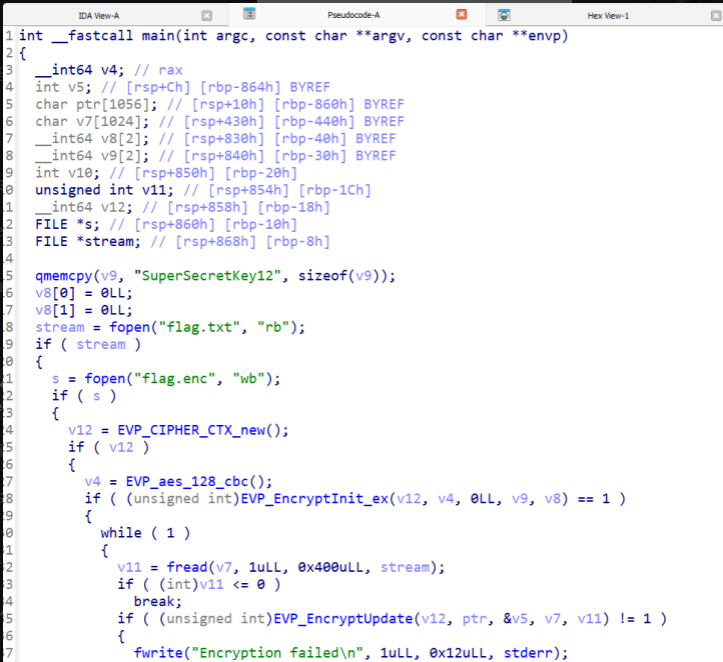
As you can see from the image , I found the key in plain text within the executable itself:
- Key:
SuperSecretKey12
Since there was no mention of IV I assumed that IV is 0 and decrypted with that assumption
5. Decrypting with CyberChef
I fired up CyberChef, a tool you should keep in your repertoire for all kinds of encoding and decoding tasks. Since I had both the key and the I assume the IV is 0 , here’s how I configured CyberChef to decrypt the data:
- Input Data: The encrypted file or text from the memory dump which flag_encrypt.enc .
- Recipe:
AES Decrypt - Mode: CBC
- IV:
0(16 bytes) - Key:
SuperSecretKey12
CyberChef Settings:
- Encryption Algorithm: AES
- Mode: CBC (Cipher Block Chaining)
- IV: 0 (16 bytes)
- Key:
SuperSecretKey12
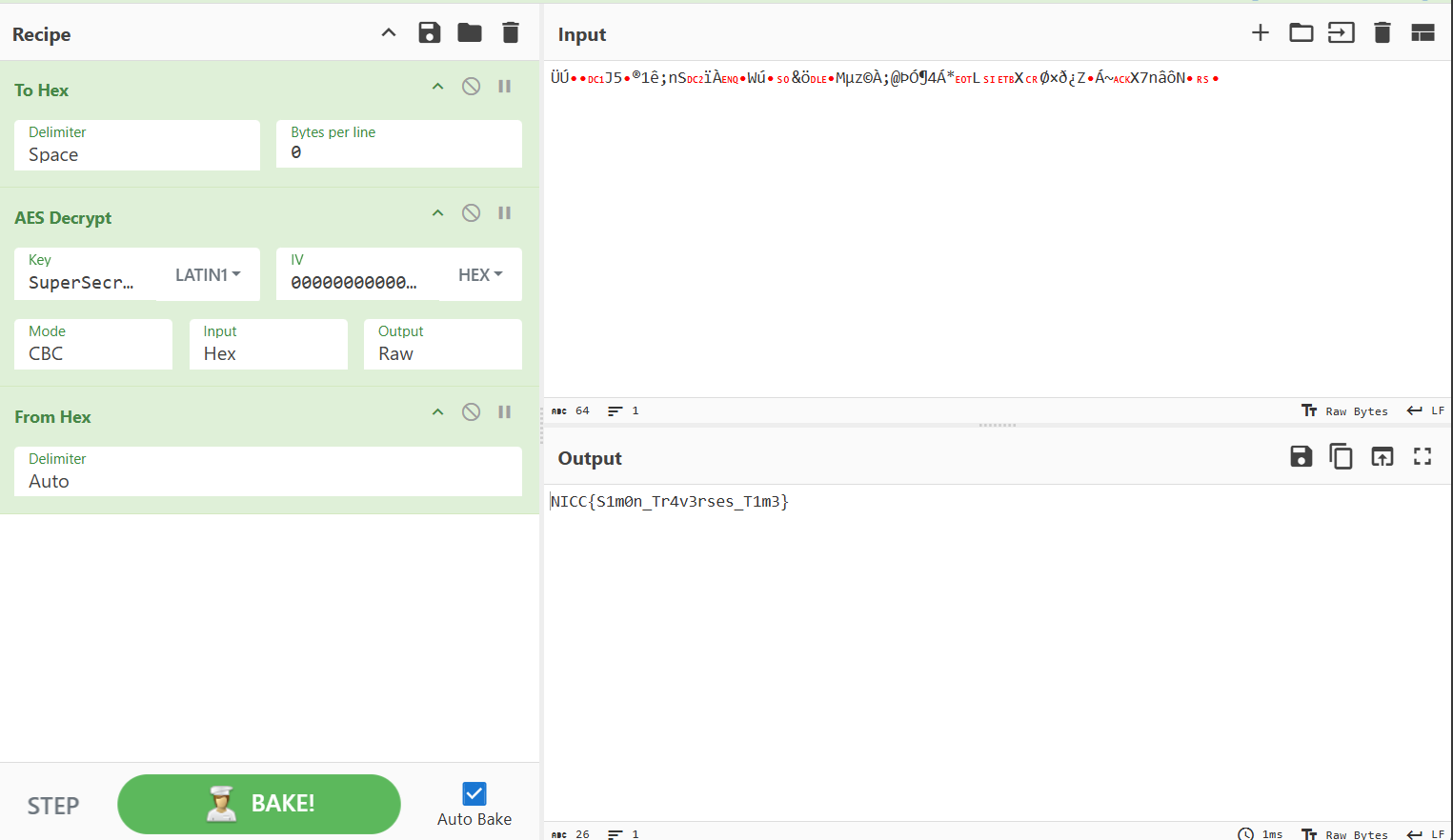
Flag:
NICC{S1m0n_Tr4v3rses_T1m3}
(Note: If you choose to use volatility2.6, use profile Win10x64_19041)